
Activating your Massar account (Moutamadris student portal)
A clear, step-by-step guide to activating your Massar student account through the Moutamadris portal using your Massar code, plus fixes for common activation problems.
Account activation is the first step a student takes before they can log in to their space on the Massar platform through the Moutamadris portal. During this process you confirm your identity with the Massar code your school gave you, then create your own username and password. This guide explains, in plain language, how to activate your account safely and how to get past the most common problems.
What you need before you start
Before you begin activation, make sure you have:
- Your Massar code (activation code): the code your school’s administration gave you specifically to activate your account for the first time.
- Your personal details: such as your date of birth, used to verify your identity during activation.
- A recovery email (if possible), so you can easily reset your password later.
- An internet connection and a modern browser (Chrome, Firefox, Edge or Safari).
Where to get your Massar activation code
Students and parents often ask where the Massar code (also called the activation code, or رمز مسار) actually comes from. You don’t request it online and it isn’t emailed automatically — the school administration is responsible for handing it out.
- Who gives it to you? Usually the class supervisor (الحارس العام) or the administration distributes the code. It may be handed to you on paper at the start of the school year or when you are first registered in Massar (moutamadris / masar).
- The code is tied to your Massar number: each activation code belongs to a single student and is linked to that student’s own Massar number. For that reason, one student’s code cannot be used to activate another student’s account.
- If you never received it: don’t look for it on outside websites and don’t borrow a classmate’s. Go directly to your school’s administration and ask for your own activation code, proving your identity if needed.
- The code is confidential: treat it the way you would treat a password. Anyone who gets your code can activate your account in your place, so keep it somewhere safe until you finish activating.
Once you have the correct code, you can move on to the activation steps below.
Step-by-step activation
Follow these steps in order:
- Open your browser and go to the official address moutamadris.men.gov.ma.
- Choose the account activation option (or its equivalent) on the screen.
- Enter the Massar code your school gave you in the field provided.
- Enter the personal details requested (such as your date of birth) to verify your identity.
- Create your own username and write it down somewhere safe.
- Choose a strong password and re-enter it to confirm.
- Set up your recovery options (a recovery email and/or a security question) so you can regain access later.
- Confirm to finish, and your account is ready for login.
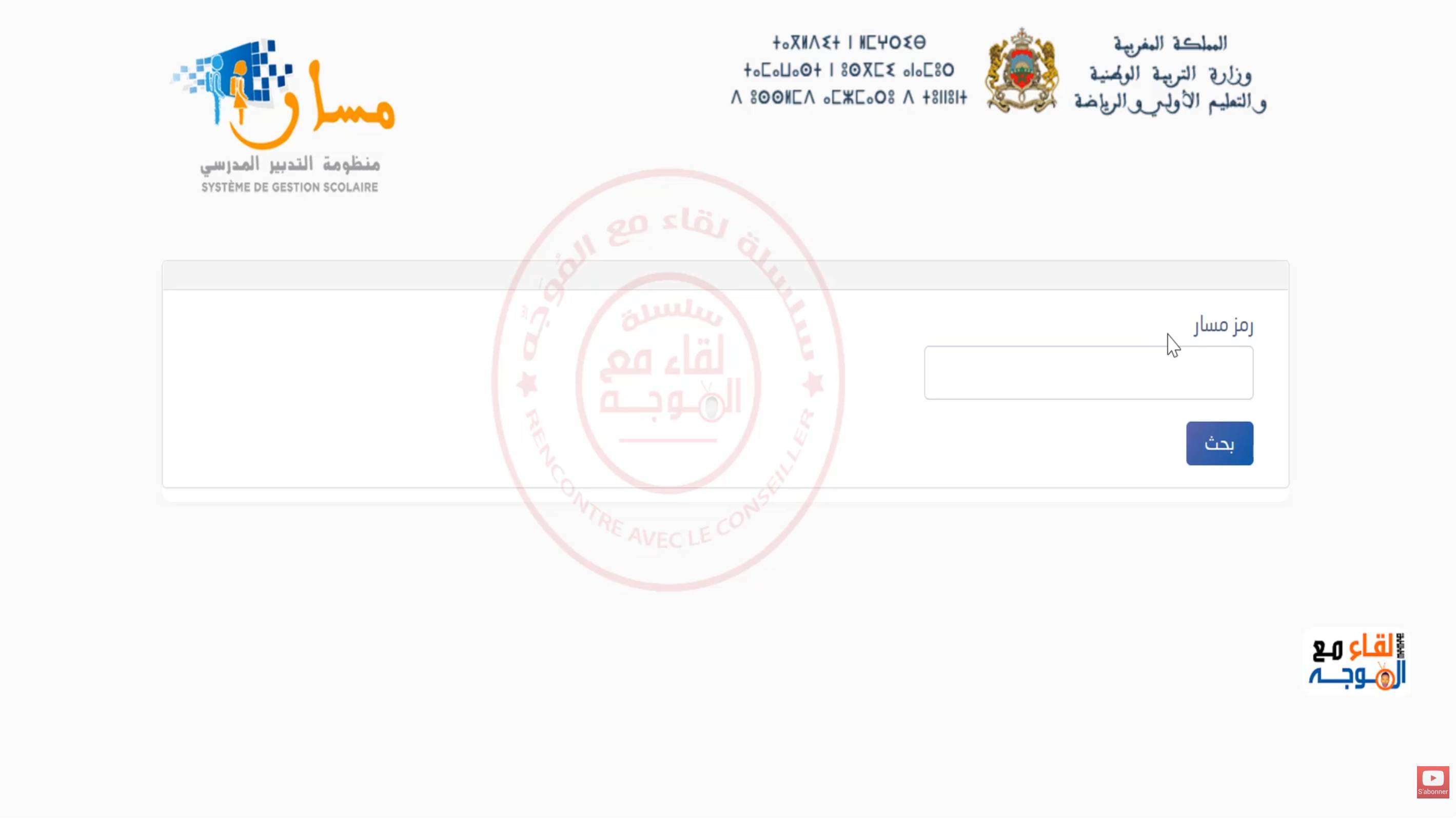
Once you complete these steps, your account is activated, and you can move on to the login page using the username and password you created.
Common problems and fixes
“Code not recognized” or “invalid code”
- Make sure your Massar code is typed exactly as given, with no extra spaces and no confusion between similar-looking letters and numbers.
- The code may not be in the system yet; wait a little and try again.
- If it still fails, ask your school’s administration to confirm the code is correct.
“Account already activated”
This means someone (possibly you earlier) has already completed the activation. Don’t repeat it; go straight to the login guide. If you’ve forgotten your password, use the password recovery service.
“Personal information doesn’t match”
- Check that your date of birth is entered in exactly the format requested.
- Your records in the system may contain an error; contact your school’s administration to correct them, then try again.
The activation page asks for information I don’t have
- The page may request an extra detail such as your Massar number or your date of birth. Check the documents your school gave you — the number is usually written on them.
- If you genuinely don’t have the requested information, don’t enter a guess. Ask the class supervisor or administration, since they hold your official records inside Massar.
I activated my account but can’t log in
- Make sure you are using the username you created during activation, not your Massar code.
- Watch for letter case and stray spaces in your password, and check that Caps Lock is off.
- If you’ve forgotten your password, go to the password recovery guide, and review the login guide to confirm you’re signing in from the correct page.
Two students share the same device
- If two students use the same computer or phone, log out of the first account before activating or signing in to the second.
- It’s best to use a private / incognito window for each student so that a saved username or password from one account doesn’t get mixed up with the other.
After activation: next steps
Once your account is activated on Moutamadris, you no longer need the activation code. Here’s what to do next:
- Note down your username: write down the username you created and keep it somewhere safe — it’s what you’ll use for every future login, not your Massar code.
- Try your first login: go to the login page and confirm your username and password work. You’ll find the details in the login guide.
- Set or confirm your recovery options: make sure your recovery email and/or security question are set correctly, so you can easily get your account back if you forget your password later through the password recovery guide.
- Review your details: after logging in, take a look at your information inside the Moutamadris space, confirm it’s correct, and report any error to the administration.
With that, you’ve completed the activation journey safely, and your space on the Massar (masar) platform is ready to use.
Tips after activation
- Choose a strong password that mixes letters and numbers but is easy for you to remember.
- Set up your recovery options (a recovery email and/or a security question) so you can regain access easily when needed.
- Keep your username and Massar code somewhere safe, and never share them with anyone.