
Resetting your Massar password (Moutamadris student portal)
A practical guide to recovering a forgotten Massar student password through your recovery email or security question, with fixes for the most common problems.
If you’ve forgotten the password for your Massar student space, there’s no need to create a new account. The Moutamadris portal offers a password recovery service through the “forgot password” link on the official login page. This guide explains the two available recovery paths, what you need before you start, and how to fix the most common problems.
Before you start
Both recovery methods rely on options you set when you first activated your account. So before you begin, make sure you have:
- Your username: usually your Massar code.
- Your recovery email or security question: whichever you set up during activation.
- An internet connection and a modern browser (Chrome, Firefox, Edge or Safari).
If you never activated your account, the problem isn’t the password — start with the account activation guide. If you actually remember your password and just want to sign in, head to the login guide.
Method 1: via recovery email
If you set a recovery email during activation, this is the easiest path:
- Open the official login page, moutamadris.men.gov.ma.
- Click the “forgot password” link.
- Enter your username (Massar code) or email, depending on what the page asks for.
- Choose the recovery-by-email option if you’re prompted.
- Open your inbox and look for a message containing a reset link or code.
- Follow the link, then enter and confirm a new password.
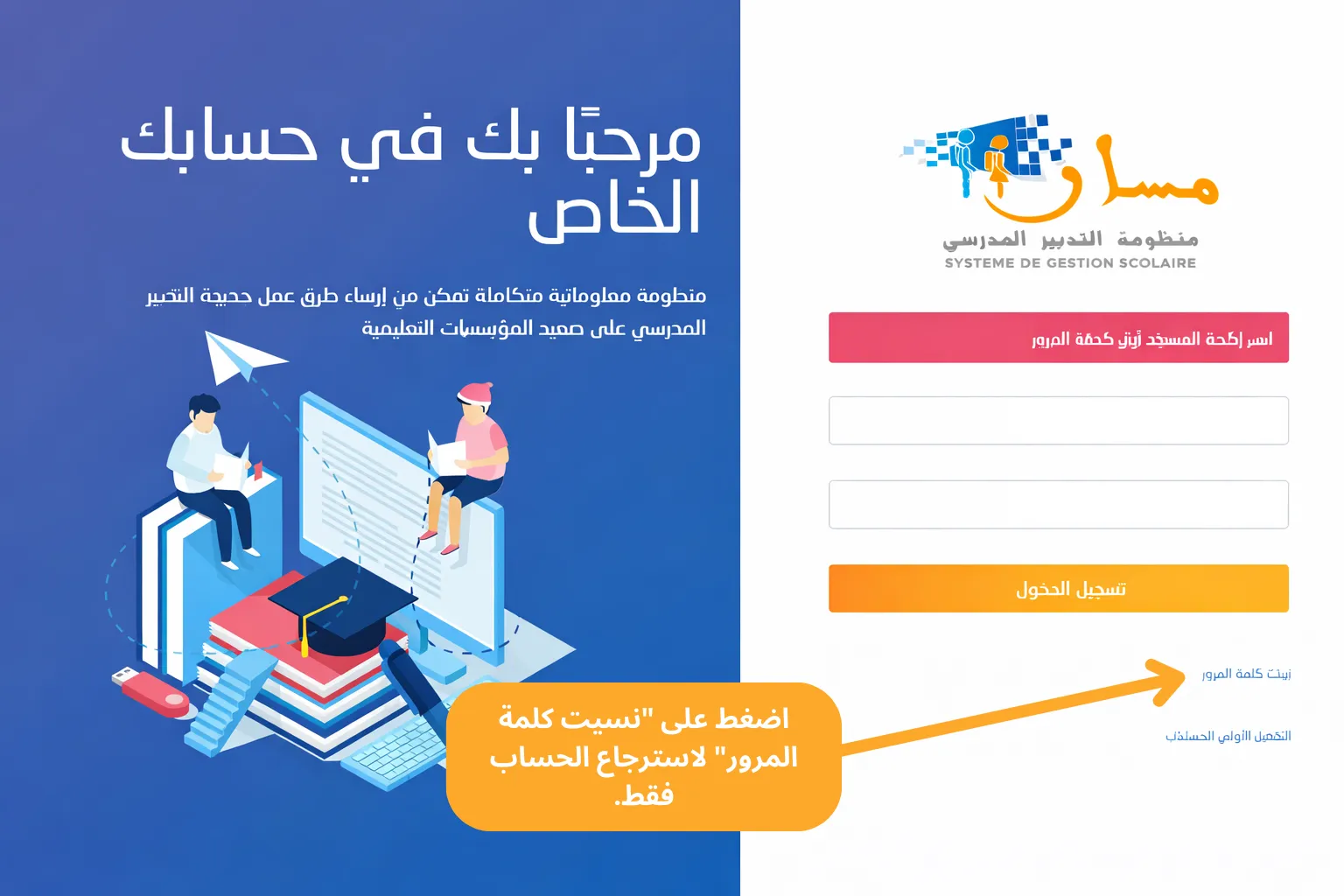
Once your new password is set, go back to the login page and sign in with it.
Method 2: via security questions
If you chose a security question during activation instead of an email, you can recover by answering it:
- On the login page, click “forgot password”.
- Enter your username (Massar code).
- Choose the security-question option if it’s available.
- Answer the security question with the exact answer you set during activation.
- When the check succeeds, enter and confirm a new password.
Troubleshooting
The reset email didn’t arrive
- Check your spam / junk folder.
- Wait a few minutes — the message can be delayed.
- Confirm the email address on your account is correct.
I forgot my security answer
If you can no longer remember the answer to your security question, you won’t be able to reset it yourself. Contact your school administration to have your password reset.
I never set a recovery email or security question
In this case, self-service reset isn’t available. The only option is to contact your school administration to reset your password in the system. See the contact and support guide for how to reach them.
The reset link has expired
The reset links sent to your email are usually valid for a limited time only. If you open the link too late, you may see a message saying it is no longer valid. The fix is simple: go back to the login page on Massar, request a new link from “forgot password”, then open and use it quickly before it lapses. Avoid requesting several links at once, since typically only the most recent one still works.
I no longer have access to my recovery email
If the recovery email on file is old or you can no longer open it, the reset message won’t reach you. First try to regain access to that inbox with its own provider. If that’s truly impossible, self-service email recovery won’t work — in that case, contact your school administration to update your details or reset the password directly in the system.
I share the account email with a parent
It’s common for the recovery email to be a parent’s address. If so, ask them to open the incoming message, look for the reset link or code, and pass it along to you. Remember that your Massar code and username belong to you as the student, while the recovery email may be shared within the family — don’t mix the two up when entering your details.
How to choose a strong password
Your new password is the first line of defence for your Massar (masar) student space, so it’s worth a little care. Here are some practical principles:
- Length over complexity: make it at least eight characters, and longer is stronger. A short phrase you can recall beats a short, tangled code.
- Mix the ingredients: combine upper- and lower-case letters, numbers, and perhaps a symbol — without making it impossible to memorise.
- Avoid the obvious: don’t use your birth date, your Massar code itself, your name, or sequences like “123456” or “password”. These are the first things anyone tries.
- Don’t reuse: never use the same password as your email or other accounts, so a leak in one place doesn’t expose the rest.
To remember it easily, think of a passphrase made of a few words that mean something only to you, or use a trusted password manager. Store it somewhere safe and out of sight, and never share it with classmates.
Prevention: set up recovery options in advance
The best way to avoid recovery headaches later is to prepare your options before you need them. On the Moutamadris portal, both a recovery email and a security question are normally set during your account’s first activation. These two options are exactly what let you reset your password yourself later without going back to the administration.
So we recommend that you:
- Make sure at least one is set at activation time — ideally both.
- Review that your recovery email is correct from time to time, and update it if your address changes, so reset messages actually reach you.
- Pick a security question whose answer is stable over time and hard for others to guess.
You can add or change your recovery email later from inside your space, under your personal details / mailbox settings.
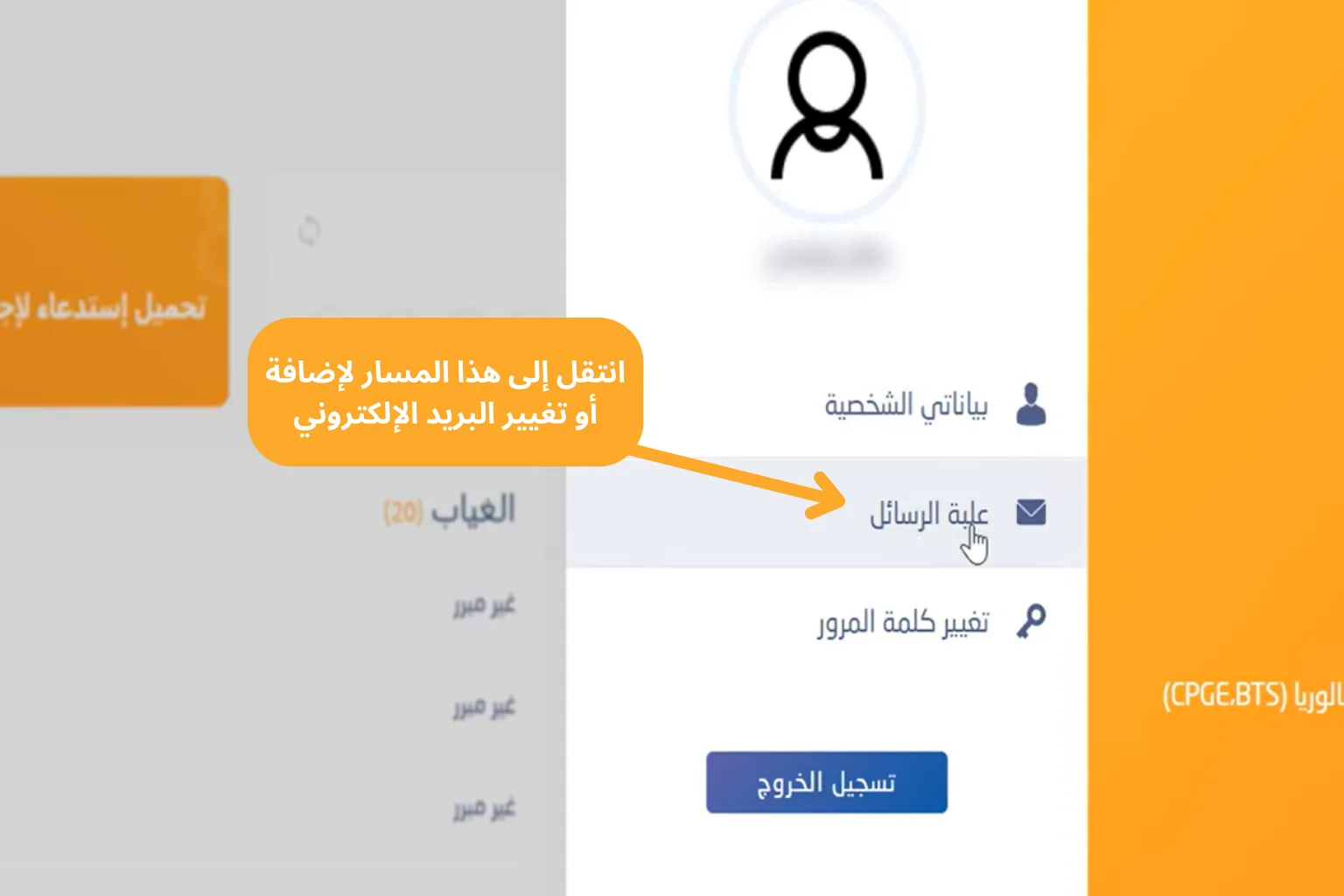
If you haven’t activated your account or set these options yet, start with the account activation guide. A few minutes of preparation today saves you a wait on the administration tomorrow.
Closing tips
- After recovery, store your new password somewhere safe and never share it with anyone.
- Don’t reuse an obvious password or one you’ve already used on another account.
- If every method fails, don’t create a new account — reach out to your school through the contact and support guide.