Massar Moutamadris Login (Massar student portal)
A clear, step-by-step guide to the Massar Moutamadris login: the official link, your username and password, and fixes for the most common sign-in errors in the Massar student space.
Massar is Morocco’s national school-management information system, run by the Ministry of National Education. Students use their personal space through the Moutamadris portal to check grades, attendance, remarks and enrolment details. This guide explains, in plain language, how to sign in safely and how to get past the most common problems.
What you need before signing in
Before you start, make sure you have:
- Your username: usually your Massar code (an identifier assigned by your school).
- Your password: the one you created when you first activated your account.
- An internet connection and a modern browser (Chrome, Firefox, Edge or Safari).
If you haven’t activated your account yet, start with the account activation guide.
Step-by-step login
Follow these steps in order:
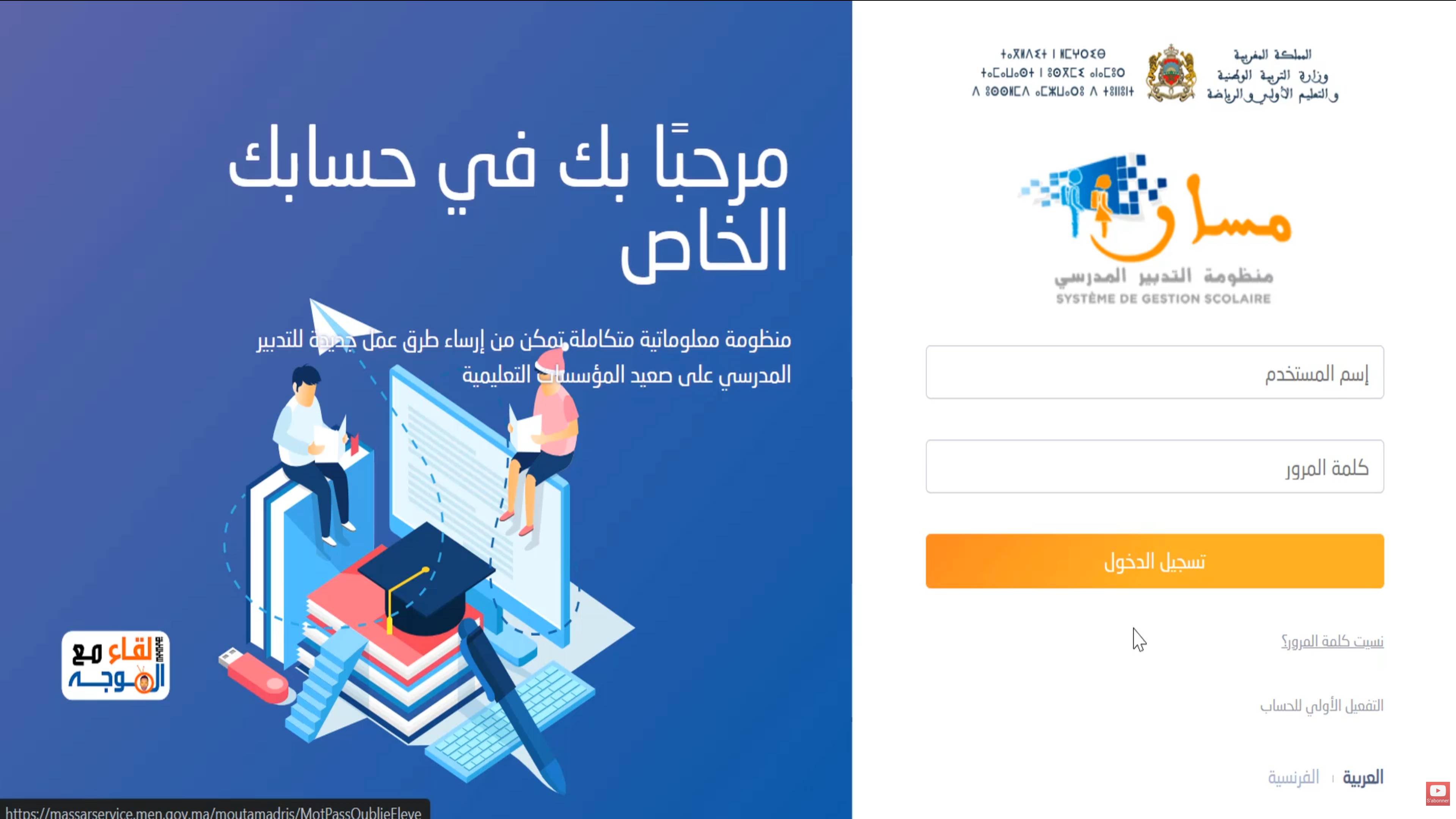
- Open your browser and go to the official address moutamadris.men.gov.ma.
- Choose the student space if you’re asked to pick a user type.
- Enter your username (Massar code) in the first field.
- Enter your password in the second field, minding upper- and lower-case letters.
- Press the Login button to reach your dashboard.
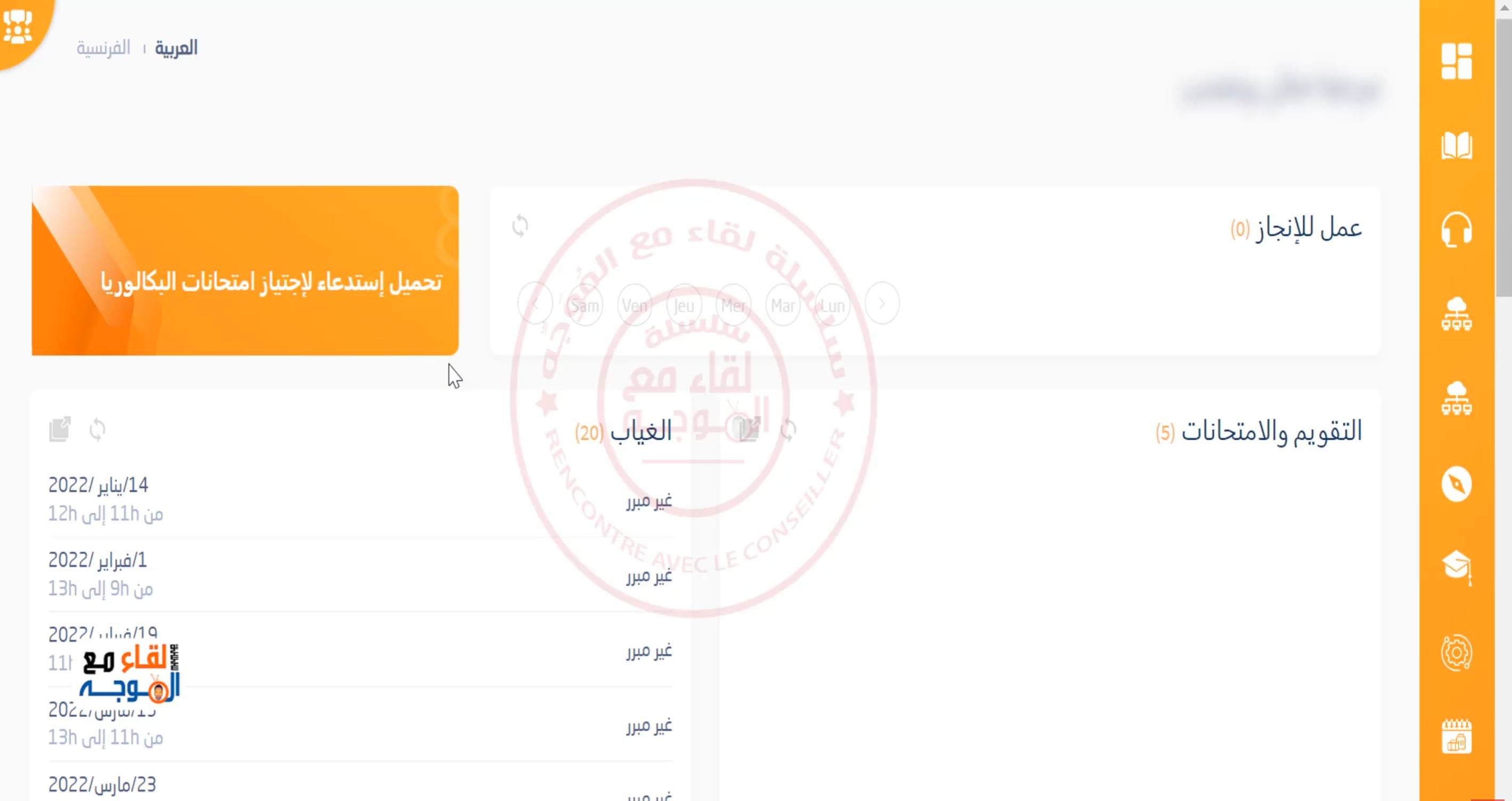
Once you’re in, you’ll see your dashboard, with links to view your grades, attendance and personal information.
Common login errors and fixes
“Username or password is incorrect”
- Make sure your Massar code is typed correctly, with no extra spaces.
- Check your keyboard language and that Caps Lock is off.
- Try typing the password manually instead of copying and pasting it.
“Account not activated”
This means you haven’t completed the first-time activation. Go to the account activation guide and finish the steps using the Massar code your school gave you.
The page won’t load or is very slow
- Refresh the page, or try a different browser.
- Clear your browser cache and cookies.
- During results-release periods the server can be under heavy load; try again later.
Logging in to Massar Moutamadris from a phone
You don’t need a computer to sign in — you can reach Massar Moutamadris straight from your phone’s browser:
- Open your phone browser (Chrome or Safari) and go to
moutamadris.men.gov.ma. - Enter your Massar code and password just as you would on a computer.
- To make it easier next time, add the portal to your home screen using the “Add to Home Screen” option.
What if you forgot your username (Massar code)?
Your username is usually the Massar code assigned to you. If you’ve forgotten it:
- Look for it on your school documents or previous report cards — it’s usually printed there.
- Ask your school administration; the number is stored in the system and they can give it to you.
- Don’t create a new account — each student has a single account tied to their number.
What’s the difference between “Massar” and “Massar Moutamadris”?
These names are easy to mix up, especially since people spell them differently (massar, masar):
- Massar (Massar Service): the general name for the whole school-management system, which includes several spaces (student, parents, staff).
- Massar Moutamadris: specifically the student space inside Massar, at the official address
moutamadris.men.gov.ma. When you want to check your grades, this is the space you log in to.
In short: if you’re a student looking for your grades or attendance, your destination is Massar Moutamadris — always making sure the official link ends in men.gov.ma.
Tips to keep your account safe
- Never share your password with anyone, not even friends.
- Use a password that’s strong but easy for you to remember.
- Always sign out when using a public or shared computer.
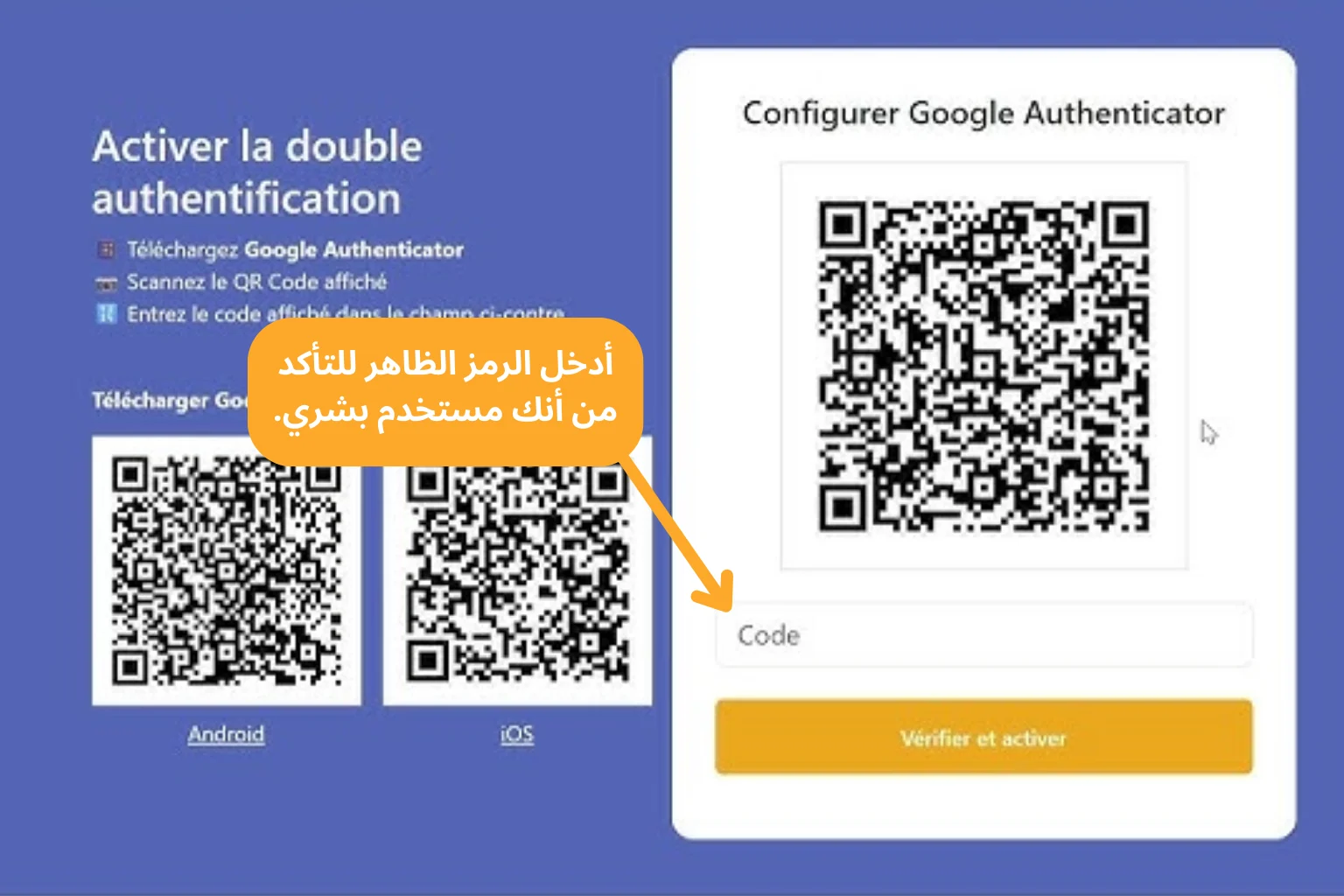
If your space offers two-step (2FA) verification, turning it on adds an extra layer of protection: after your password, you also enter a one-time code from an authenticator app on your phone.