
Massar Parent Space (Waliye): follow your child's schooling
A plain-language guide to the Massar parent space (Waliye): what a parent can follow, how to create a guardian account, and how to link your child step by step.
The parent space (فضاء الأولياء / Waliye) lets a parent or guardian follow their child’s schooling remotely inside the Massar system. Through it you can view attendance, behaviour notes, grades and averages, the timetable and school announcements — without needing the pupil’s own account. This guide explains, in plain language, what the space offers, how to create your account, and how to link your child step by step.
What a parent can follow
The parent space brings the most important information about your child’s schooling together in one place:
- Attendance: the list of recorded absences and lateness, and sometimes instant alerts when a new absence is logged.
- Behaviour: discipline notes, warnings or sanctions recorded by the school.
- Grades and averages: test marks and averages by subject and term as they are entered.
- Timetable: your child’s weekly schedule of classes.
- Announcements: school news and notices addressed to parents.
Creating a parent account
To create your own guardian account, follow these steps in order:
- Open the parent portal or download the Waliye app made for parents and guardians.
- Choose create account / register (not sign in with an existing account).
- Enter your details as a guardian, with a valid email and/or phone number.
- Verify your account using the confirmation code sent to your email or by text message.
- Sign in to your new account to reach the follow-up dashboard.
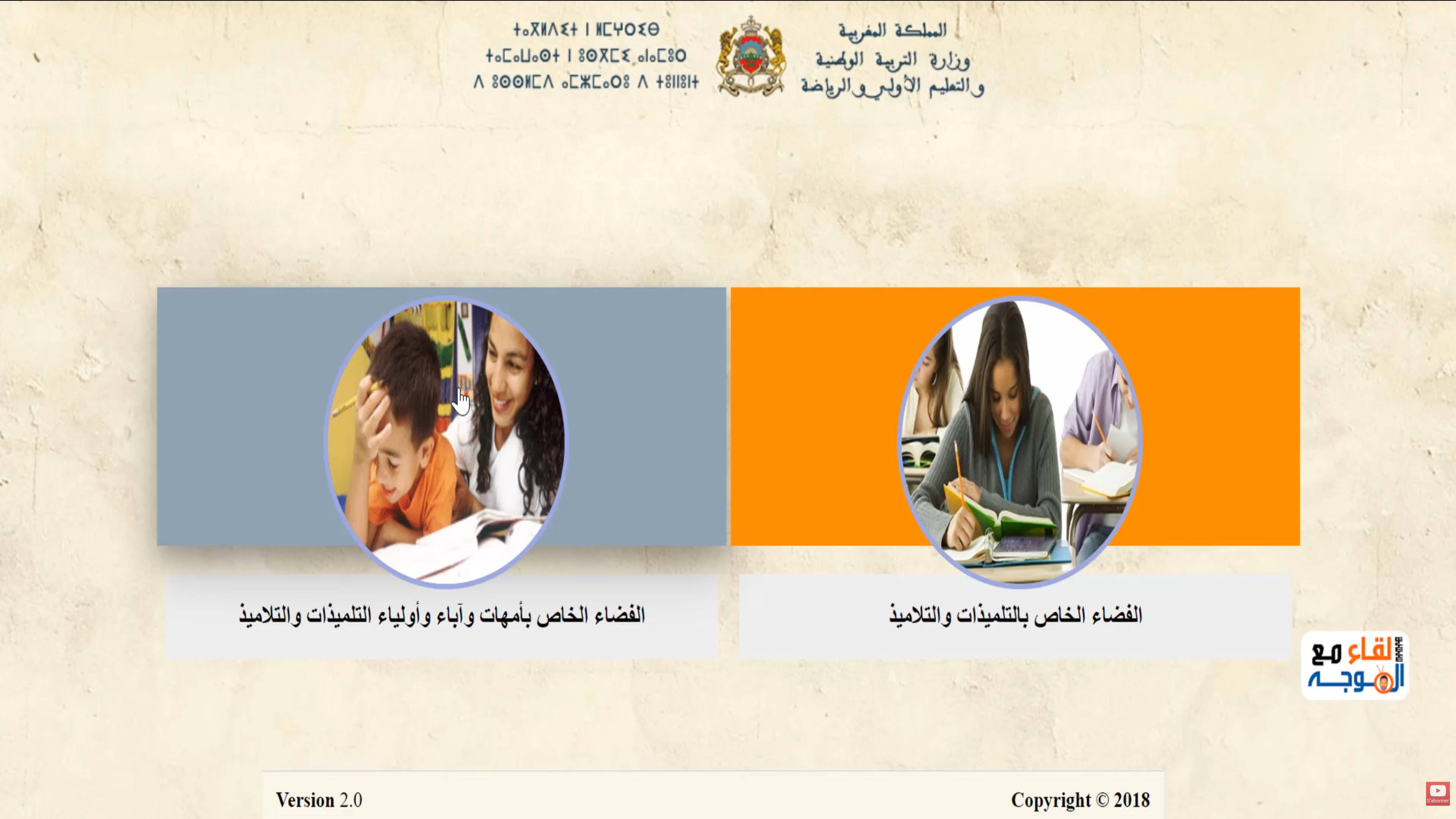
Once the account is confirmed, you’ll see an empty dashboard waiting for you to link your child before tracking can begin.
Linking your child
Schooling data only appears after you link your child to your account. You usually need the pupil’s Massar code plus some personal details (such as name and date of birth) exactly as recorded by the school.
- From inside your account, choose the add a child / link a pupil option.
- Enter the child’s Massar code in the dedicated field.
- Complete the required personal details to verify the pupil’s identity.
- Confirm, and your child’s name appears in the list of children linked to your account.
To add another child, repeat the same steps using the “add a child” option; a single account can usually be linked to more than one pupil.
The Waliye mobile app vs the web version
A parent can usually follow their child’s schooling in two ways: through the Waliye app on a phone, or through the parent portal in a web browser. Both show much the same information (attendance, grades and averages, timetable and announcements) and rely on the same login, so there’s no need to create a separate account for each.
The app is convenient for receiving instant notifications about a new absence or newly entered grades, which makes day-to-day follow-up faster without opening a browser each time. The web version, in turn, is a good option when your phone isn’t to hand, or when you prefer a larger screen to review the details.
Getting started
- On a phone: download the Waliye app from the relevant app store, sign in with your account, and allow notifications when prompted so alerts can reach you.
- In a browser: open the parent portal and enter the same details. If you’re already registered on one, you sign in to the other with the same account — no new registration needed.
Following more than one child with one account
If you have more than one child studying inside the Massar (moutamadris) system, you don’t need a separate account for each. The parent space usually lets you link several children under one parent account, with each pupil linked by their own details (Massar code and personal information) as recorded by their school — even if the children are in different schools or levels.
Switching between children
Once you’ve linked more than one child, their names appear in the list of children tied to your account. Select the child you want to follow to see only their data (attendance, grades, timetable), then return to the list to switch to another child. In the Waliye app there is often a quick switcher near the top of the screen that lets you move between children without signing out and back in.
Troubleshooting
“Massar code invalid” or “pupil not found”
- Make sure the Massar code is typed correctly, with no extra spaces.
- Check that the personal details (name, date of birth) match exactly what the school has on record.
- If it still fails, contact the school to confirm the code and details in the system.
I can’t link a second child
Use the “add a child” option instead of creating a new account. One account usually accepts several children, each linked with its own details.
I didn’t receive the verification code
- Check the spam folder in your email.
- Confirm the phone number or email you entered is correct, then request the code again.
- Wait a few minutes before retrying, as the code can sometimes be delayed.
I forgot my parent password
Don’t create a new account. Use the password recovery option in the portal or app, and if that doesn’t work, contact us or ask the school.
I don’t receive absence notifications
- Make sure notifications are enabled for the Waliye app in your phone settings, and that it’s allowed to send alerts.
- Open the account settings inside the app and check that absence notifications are turned on.
- Remember that an alert only appears after the school records the absence in the system, which can sometimes be delayed.
The app shows old data
- Pull down the screen to refresh the data, or close the app and reopen it.
- If old data still shows, sign out and sign back in to reload the account.
- Check that you have a stable internet connection, as the app may display the last saved copy when the network drops.
I can see one child but not the other
- Confirm that you actually linked the second child using the “add a child” option, not just the first.
- Check the second child’s Massar code and details, as the link may not have completed.
- Use the child switcher at the top of the screen — the child may be linked but simply not selected right now.
Before you start tracking
The parent space is a helpful tool for supporting your children through their schooling. Have each child’s Massar code and details ready before you begin, and if you have a general sign-in problem, see the login guide, or contact us for more help.